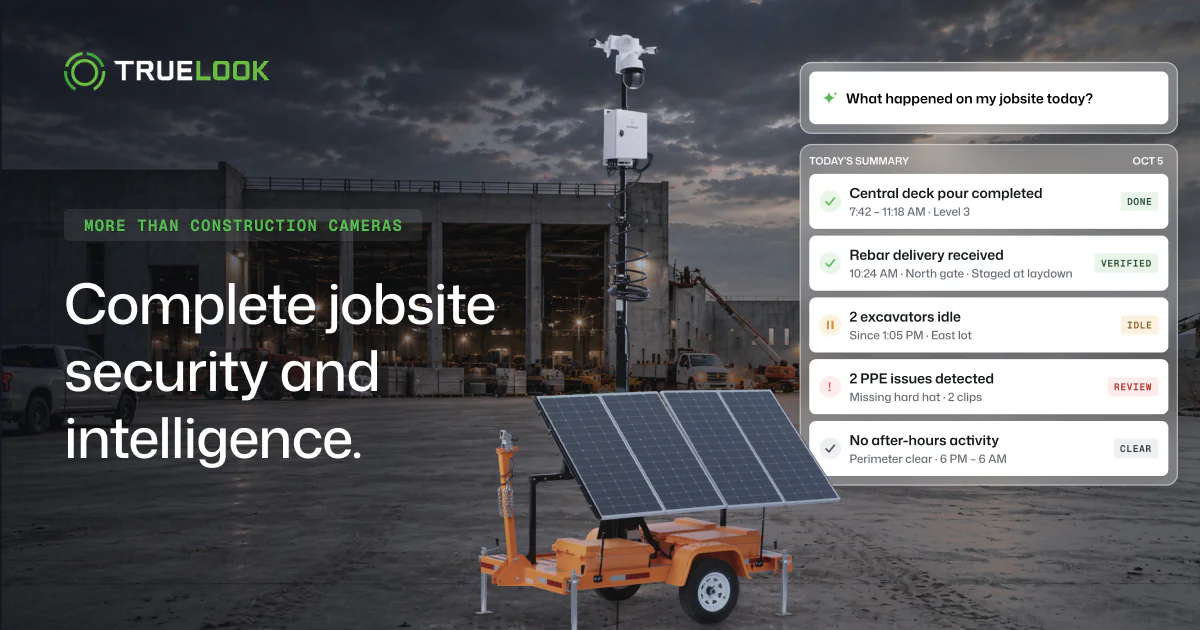


See a quick, live walkthrough of how construction teams are using TrueLook to get better visibility across their jobsites, improve security, simplify progress documentation, and unlock new insights with AI.
In this 15-minute demo, we’ll show how one platform can help you keep a closer eye on your project without adding more manual work for your team.
What we’ll cover:
- Live jobsite visibility and remote access
- Progress documentation and time-lapse tools
- Security and alerting capabilities
- New AI features, including PPE detection and smarter jobsite insights
Whether you’re looking for a better way to monitor progress, strengthen site security, or see how AI is starting to play a bigger role on the jobsite, this session will give you a practical look at what’s possible.
Transcript
We’re gonna just go through a quick overview of the TrueLook dashboard, go through some of the the key features and what makes TrueLook a industry leader here. For those who have joined, my name is Ethan Coates.
I’m a senior account executive here at TrueLook. I’ve been with TrueLook almost four years. It’ll be four years actually just a few weeks.
You know, the team grow with the team, and, you know, we use TrueLook on various job sites, and I kinda just wanna do a high level review of how we can partner on different various sites, how our security works, you know, some of our safety features. Just kinda go into detail about, what makes TrueLook a, an an industry leader in this segment for reality capture and progress documentation and site security. So Alright.
Okay.
So we’ll kinda dig into a little bit what you see in front of you. So here is the TrueLook dashboard. Each customer has their own unique dashboard. It’s gonna have, several of their projects listed depending on how many projects you have active and how many cameras you have active.
We’ll showcase those all here in a list view or various views depending how you set that up. We have ways to change views up here, depending on how you like to view your camera inventory, in all your projects. So it’s easy to customize that depending on what works best for you. Additionally, also, we have, a very, big option list for the types of cameras you can use on-site.
So we have fixed cameras, which are a fixed position, meaning that they see a wide field of usually high resolution. These are usually used for progress documentation, time lapsing, general purpose visibility. We also have what are called pantal zoom cameras. Those are robotic cameras that can move around and see different parts of the site.
Those are used for usually a lot bigger sites where we need to see a lot farther away, excuse me, and see a bit larger projects. So if I scroll down here, we have a few different options here for different cameras.
I wanna jump in here really to our PTZ. This is probably our most popular model of camera, what we use here on-site. So basically, you can set the camera automatically livestream and see a live video here Depending on your cell connection, of course, and your connection overall of the job site, it may take a little bit more time to get set up. Of course, as we speak right now, I am actually on a live project site, so I’m using the the Wi Fi that we have here in the the trailer, so to speak.
So it may be a little bit slower than you would normally see getting set up here. So now we are seeing live view on our stream here. So we’re looking at live job site out in the far corner here. So this is a great example of why the PanTool Zoom camera is such a robust camera system to use.
If I click my viewfinder tool, I can click my area selection tool. I can actually use my crosshair system here, and I can highlight over an area of interest. So let’s say that excavator down there, kinda wanna see a little bit closer. I’ll tell the camera I wanna move over in that area and see in real time what is going on down that site.
Again, depending on your connection and everything, maybe a little bit slower to get to where it needs to go, but give it some time. And now I have a nice, crisp, clean picture of that excavator in that site. So if there’s anything in particular I need to check on and see, this is an easy way for me to do that very simply. I can also stop the stream.
And I’ll refresh my image here to pull up the latest image. What I can do from here is actually show this image and share it with teams.
We have integrations to Procore, Autodesk, Construct Cloud, DroneDeploy, Raken, and some others coming down the pipeline.
This is an easy way for you to if you want to share data with any of these teams in those integrations, you can.
In my little preset excuse me, tool menu here, I can go down. I can also adjust presets from here. I can lock out my camera. I can share, like I was just stating earlier, with certain teams. I have my Procore integration set up, if I wanna do that directly, I can click that and go there.
I can also mark up this image, which is really nice, and I can highlight certain, you know, parts of the job site. Maybe if there’s an issue with this truck placement, I can direct that over there, even add some text. And, again, if I have that Procore setup, I can create that RFI directly to Procore. It’s like the project.
So very powerful tool and solve part of what you pay for with the TrueLook package and subscription. So and for our full server marketing, we can also do social media shares. We can do Facebook, LinkedIn, directly from here if there’s anything you wanna highlight, like a capstone ceremony or progress that was a a ceremonies progress point. We can actually share that directly there as well.
Other key features.
So to talk about security sides of things, switch over that. So this is a multifamily build we got going on here. Secure is a big part of multifamily. Builders risk especially, we have lots of systems that cater that, including our new TrueShield and TrueDetour units.
Those have what we call a job site monitoring service, which I would highly recommend you schedule a demo with me to let me showcase you that more detail. It’s a really powerful tool for after hours monitoring for police dispatch and to be able to get people on-site if there’s any break ins, vandalism, theft going on. But if I go to my secure recordings tool, each camera is set up between thirty to ninety days pending under subscription tier. This one is a advanced plan for us.
So this is a sixty day rolling recordings, meaning that within the window from February to April, you’re in a sixty day window to fetch and store those recordings. They are ten minute video clips twenty four hours a day, seven days a week. So every, you know, hour on the day, it’s taking video clips here to where you’d be able to see those recordings processed, and you can download them at any time. So for instance, if I have some here, from early in the morning or maybe later at night, depending on how things works, I can click select mini, fetch, and just grab a few recordings here.
And I can fetch these selected, and then they will queue in the download and download onto the cloud. Once they’re fetched on the cloud, they’ll stay in the cloud for up to three years. So you have access to these for up to three years. You’ll see the secure recordings, review them, send them to insurance, police, whatever you need to do.
So it’s a very, very nice thing to have in the background. It’s all cloud based. You can do this from their phone, and it’s a very, very unique tool. So definitely make sure you use that when you need it.
Another big thing of what makes TrueLook awesome is our time lapses. So we have a way you can make on our advanced plans, a lot the time lapses, you know, with the panto zooms. Try to recommend just a handful of them just because the camera will be moving when you’re taking those time lapses, but it’s very nice to be able to have a, way to create, documentation progress throughout this entire set here. So for this one, have Air fifteen minutes.
It’s running, six to nine PM. It’s generating time lapses. We have about twelve thousand images, captured so far. We can actually go back and review at any point in time, which is fantastic.
So if I need to go back and review an image from, you know, earlier in October and say, you know, something happened I wanna go check on, I can actually click this and select the date tool here.
I can go back to that date in twenty twenty five.
Scroll over to October. And let’s just pick that October tenth, for instance.
Let’s say there was something on-site that happened in particular.
I can actually review that photo. I can again share it, save it, mark it up, throw it in a Procore if I need to, email someone directly.
I also have the option for what’s called an image comparison tool. This is a super powerful tool if I wanna go and review progress real time.
I can go back over into twenty twenty six. Let’s just say the current here. It’s April tenth, and we’re gonna go change the time of day. It’s, you know, about one sixteen, almost the same time there.
And so now I can see actual real time progress evaluation to see, you know, what happened over the course of these months. So it’s an incredibly powerful tool to help make sure we’re on schedule and on time and everything’s progressing as need be. And this acts this this is available for access for folks who have access to the photo albums, time lapses, approach to admins, custom access users, things of that nature. And you can also take a screenshot and save this in our cloud photo album as well.
So again, to make a time lapse, just click new time lapse, go in here, create your time lapse, create the parameters of how you wanna set up. You can be between certain hours continuously once a day, weekly as well. Another cool feature about the time lapse is you can also create what’s called a subscription tool. So if I go to email updates, I can do time lapse images or AI summaries.
I can have those then sent to an automatic email for a stakeholder or PM or anybody that just wants quick updates, you know, weekly. I can add them to those email updates. So, like, the camera project frequency, it’ll get subscribed.
Also, if you are a TrueLook customer and you have a venture with somebody and they’re another TrueLook customer, we can also link cameras to where you can use cameras cooperatively on a project at where everybody can have visibility needs visibility, which is a great tool to use as well.
Quickly just talking about some of the settings.
So we have a easy way to do user management. So these are some of our employees here at TrueLook, lot of folks down here in a different access rights and things. To quickly add a user, you would just type in their name, email.
If they’re not admin, you just pick which project they’re on, and you can just customize. Project admin means they can add users, check time lapses, secure recordings, be able to go through a lot of the main features of TrueLook. And then, of course, we have the sorry. Was just looking at some real quick. The custom settings here, which allow you to just go over the general views if you want. So, basically, you can choose if they want to have a certain view of the camera, if they’re able to manipulate the camera, move it, if they can see a secure recording. So again, it’s very granular to set up how you want to have access on all of these cameras just depending on what’s best case, best practice for folks who are using the system.
So and you can add as many users as you want. So you’re not limited to only fifty users, hundred users. We’re unlimited on that, so you can add unlimited users here. So it’s a very nice feature from TrueLook to be able to do.
And, of course, if need to deactivate anybody, you can just click deactivate, and they’re gone. And you can always add their access and send password resets if need be. Another really powerful tool for stakeholder engagement and for user integrations is our sharing center. So it’s an easy way to share a a Camera link to a customer or to, you know, a investor or stakeholder.
Let them have access to see the camera view, the live view. And if for some reason you need to cut the link, can easily disable it here with this button for available, you know, take the camera online or offline depending on what your settings are there. You can always edit them. You also have way to have embed code for HTML.
So if you wanna do HTML code for, you know, website or anything like that, we do this a lot of time with, public facing projects. One that we did recently was National Center for Civil Human Rights. We did an awesome one where they they used us a lot on social media and and had some of this available. So it’s really cool to be able to do that project with them as well.
So and we also have a way to do rotating live streams and slideshows. It’s powerful if you wanna showcase things in your office and demo a little bit more about what projects you’ve done and things of that nature. So other things I wanna talk through real quick are are AI and PPE detection here. This is language learning model built in house.
It’s our own AI learning system. And basically what we’ve been doing is taking millions of pictures and training it to recognize hard hat violations, safety violations, or expand this even further to have more granular data as time goes on. But right now, it’s really looking for just main violations with high biz vest and, of course, with hard hats if they’re wearing or not. So if I go in here to, you know, my True AI dashboard, I’m not gonna be able see the full site activity the way that I’m logged in, but for the PPE detection.
Basically it’s gonna say if there’s, you know, any kind of violations and what they were and I can click on it. You know, it’s gonna be actually able to showcase if there’s anything that, you know, was not set up. So they are wearing high visibility shirts, but maybe they need to wear vests. As you can see, it’s got people without with the vest not tagged here necessarily.
You can also give it like a a thumbs up, thumbs down like you wouldn’t like a like dislike system. So if it’s not as fully accurate as needs to be, you can dislike it. And then it’ll help it learn a little bit better about what it needs to see on-site, what’s acceptable. Right?
Also, food setup looks amazing, and I I need to go visit a job site where they got a food set up like that. That that looks pretty legit. So that’s kudos on them for doing some awesome care of their employees there. That’s that’s great.
So it’s, again, a very simple system to use to be able to check data. You can go last month, month month to date, custom ranges. The site is also gonna measure basically your vehicle counters for personnel, vehicle data, all that’s gonna be set up there.
It’s a really powerful tool and it’s only gonna grow further and further as we develop this language learning model and develop the software that we’re using for the entire AI system here. So definitely stay tuned on that. And for folks who are using solar cameras, now this one in particular doesn’t have any data per se that I have available, but we have a way to showcase solar equipment. Let me see if I can actually pull one up here for some more solar equipment here. And we have a way to actually watch the solar data and see.
Yep. So here we go. Basically, you can see what the charge rates are, last seven days, temperature of everything, make sure it’s on par with what it needs to do for voltage trends. This is super helpful if you’re in a remote area and you maybe not have access to check on your solar every day.
You know, that’s not the most ideal situation. Right? So if you have this way to check on the system, ensure its health, make sure it’s all good and coordinate with site teams. And if there is an issue, say, hey, guys, can you check on this camera?
So there’s been an issue with the charge. Maybe the panels weren’t facing the right way or something wasn’t set the right way.
We can easily address that and take care of that. It’s another nice feature of TrueLook. Other nice to have too, we also have a great little weather app. Biggest thing I like about this is actually the historical weather data, which shows you the past sixty days of weather data here. And that allows you to, basically, you know, have, a way to to document, you know, what weather conditions like on-site. So for instance, there’s been a drought or excess rain. You can export this to the CSV and actually send this out to folks for review, and let them know this is why they have delays on-site.
We’re pretty much wrapped up. This is my time here at twelve fifteen. If you want a more in-depth demo and you wanna learn more about TrueLook, please reach out to us. Know, info at TrueLook, sales at TrueLook dot com.
My name is Ethan Coates. I’m a senior account executive here. If you wanna work with me personally, feel free to send a message, and I’ll be happy to work with you. But we really appreciate your time today, and I hope you have a great rest of your Thursday and a great rest of your week.